Best Practice: Configuring a Software Library for Group Policy Software Deployment: "
This article is a continuation of the other blog post I have previously published at Best Practice: How to deploy software using Group Policy. I highly recommend that you take to the time to review the other blog posting before continuing on reading this post. Most particularly if you are looking at using Group Policy to deploy software please review Tip #1 of the before mentioned article to make sure this method of software deployment is right for you.
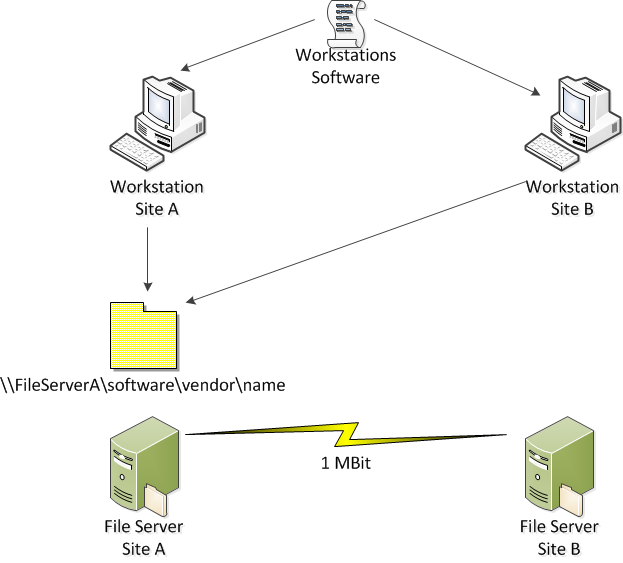
One of the pitfalls with deploying software using Group Policy is that you can only specify a UNC path for the workstation for the installation files. The problem with this is if you are in a multi site environment you may end up trying to deploy a fair large software package over a slow WAN link (see image below).

This is creates the obvious problem that it makes the computer un-usable for a long time while the software attempts to download and install. This problem can also be exacerbated if there are multiple clients from the same site trying to install the software at the same time.
So to get around this problem there are a number of different options I will show you that can help mitigate the performance issues with installing software via GPO in a multi-site environment.
Software Library Naming Conventions
First of all I recommend that you implement a good naming convention for the software library in your environment. All installation files for all programs you deploy should be located in the software library so that they are easy to find and maintain.
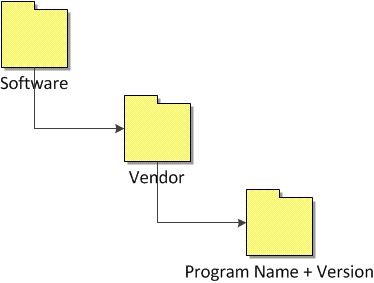
The image blow shows a tried and true structure for a software library that I have seen work many time for multiple organisations.

This structure makes it very easy to find the programs that you are looking for from an administrative point of view and it allows for easy tracking for what versions of programs you have in your environment.
An example of this structure would look like this:

Sharing and Securing the Software Library
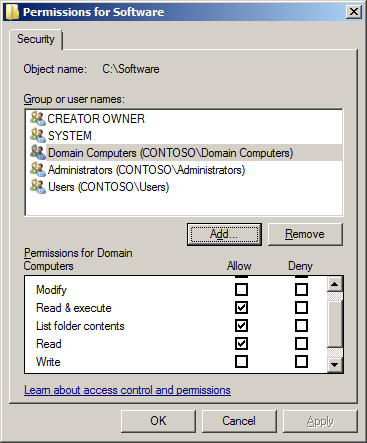
As your computer may need to install software before user logs on so the computers domain account will need to have permissions to read the files from the software library. To do this, at the top level of the folder structure called “Software” you will need to make sure you granted the group called “Domain Computers” read access to all files and sub-folders.

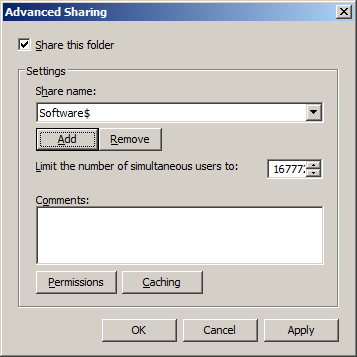
Now that you have secured your top level “software” folder you now need to share it out so that computers can access via the network (see image below). I would also recommend that you make it a hidden share to help hide if from any users that want to snoop around your network.

While you need to apply read permission on the software library for all domain computers you should tightly control modify access to this folder as it is possible that someone or something could plant something nefarious there and have it deployed to all your computers. Normally I don’t recommend that you control access to file using share level permissions however in this case you may want to consider leave the share as “read” only permission for everyone as an extra level of protection. By doing this you prevent anyone (even an IT administrator) from also accidently changing the files or folders which could potentially cause a LOT of issues.

Now that we have the Software Library created we will move on to see what various methods can be used to more efficiently distribute these files for your computers to use as a installation point.
Replicated Software Library (Only)
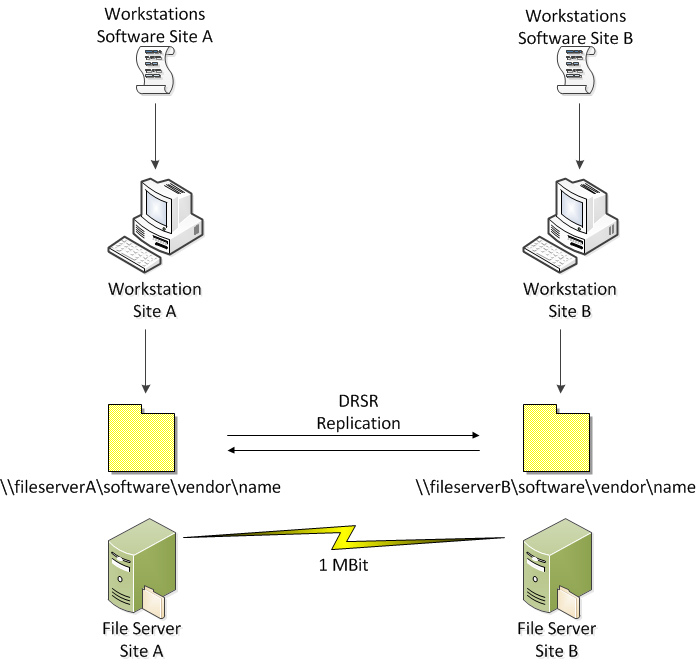
One way to get around the issue with distributing software is to make sure that you have a copy of the Software Library located at each site that you have workstations located. Simple setup a DFSR Replication Group for the top level “Software” folder and make another copy of the files at the Site B. To make sure workstations in Site B will install from the server in Site B you will need to create another software deployment GPO identical to the GPO in site A with the exception of the UNC path that points to the server in Site B. This way workstation in Site A will install from FileServerA and workstations in Site B will install from FileServerB thus avoiding the clients from pulling the install files via the WAN.
TIP: Remember there might be some replication latency when copying new files to the Software Library so make sure that all your files are fully replicated before you change your Group Policy Objects.

If you do use this method you should target the GPO for site A and Site B to an OU specific to that site. Doing this way would also means that any computer that is configured in the Site A OU but was located in the Site B site (e.g. laptop) would try to install programs via the WAN.
You therefore may be tempted to target your GPO’s to the Active Directory Site but this is something I would definitely NOT recommend. The problem with targeting a GPO to Active Directory Site would mean you would also be targeting all your servers in that site as well. For more on this see the “Linking GPO’s” section in my Best Practice- Group Policy Design Guidelines – Part 2 blog post.
This method does have one advantage and that is workstations that are not located in Site A or Site B will not attempt to install software via the WAN either.
Pros
- Clients install software via LAN
- Suitable for Windows Server 2003 R2 or later
- Suitable for Windows XP clients or later
- Only applies to selected sites
- Low LAN Bandwidth
Cons
- Difficult to manage due to Multiple GPO’s required to be created for each site.
- Large infrastructure requirement for hosting multiple copies of Software Library
I don’t recommended just using this method by itself as you can see when the other methods below can be much easier to administer.
Replicated Software Library using a DFS Namespace
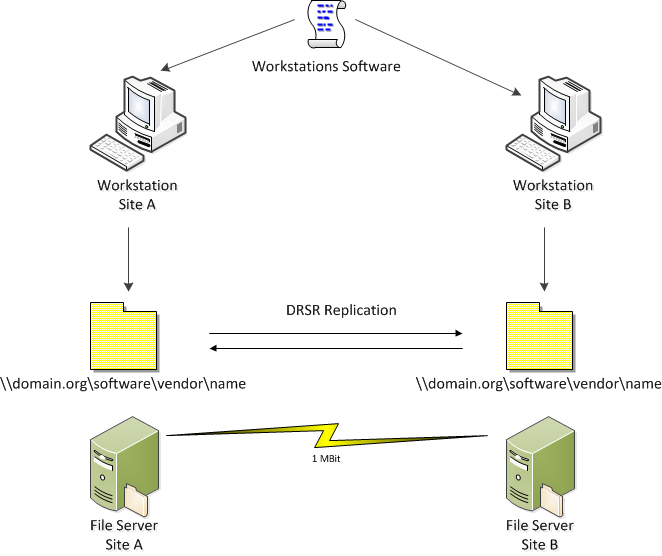
The obvious issues with the “Replicated Software Library (Only)” method is that you needed to create, maintain and target multiple GPO’s to your environment to ensure that software is distributed. To get around this issues you can deploy a domain based DFS Namespace in conjunctions with your DFSR Replication Group which will allow you to manage a single set of GPO’s for all your software deployment needs.
This method allows you to have one UNC path that can be used to distribute software to all your workstation no matter which site they are connected. Having only one UNC path also means that you don’t need to create multiple GPO’s for software deployment in each site.
Tip: As you are relying on a DFS Namespace this also means you have a reliance of you Active Directory Sites as this is how a workstation figures out what is the closest file server. Therefore it would be highly recommended that your AD Sites are configured correctly otherwise you might find that you workstation still installing from file servers in the wrong site.

A downside to this method is that if a computer was to connect to Site X and there was no file server in this site then the workstation would then try to find the next closest file server in another site (this would be bad). To mitigate this issue you really need to be sure that you have a software distribution point located in each of our sites so your workstations always have a local file server to pull the install files from.
Pros
- Clients install software via LAN
- Suitable for Windows Server 2003 R2 or later
- Suitable for Windows XP clients or later
- Low management due to single GPO for all workstations
- Low LAN Bandwidth
Cons
- Software is slow to install if site does not have a copy of the software library.
- Large infrastructure requirement for hosting multiple copies of Software Library
This is probably the most commonly used configuration in most environments today. If you are in doubt as to what then this is probably the solution best balanced configuration of management overhead with
Replicated Software Library using a DNS Alias
This method of software deployment is very similar to the “Replicated Software Library using a DFS Namespace” options mentioned above but it instead relies up DNS Netmask Ordering for the client to find the local file server.

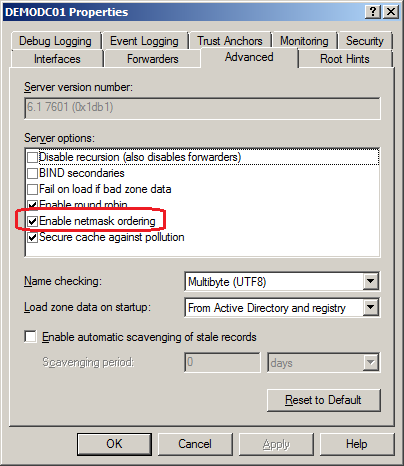
This option is configured on your DNS Servers (see image below) so it tries to return the closest IP address to the workstation based on the IP of the Workstations and the IP of the multiple A record for the Software Library servers.

For this option to work you also need to have multiple DNS A Records configured to point to all the servers that have a replica of the Software library (see below).

It also requires that your workstation IP address ranges are close or the same as the file servers. This would mean this option would not work if your workstations with in 10.1.0.0/24 subnets and your servers were in 10.0.0.0/24 subnet as they are not logically close to each other.
If you do use this option then you will also need to set Disable Strict Name Checking on the file servers hosting the software library so they will respond to the DNS Alias address.
Pros
- Clients install software via LAN
- Suitable for Windows Server 2003 R2 or later
- Suitable for Windows XP clients or later
- Lower management due to single GPO for all workstations
- Low WAN Bandwidth
Cons
- Software is slow to install if site does not have a copy of the software library.
- Large infrastructure requirement for hosting multiple copies of Software Library.
- Difficult to setup and requires the specific IP Address scheme
This option is definitely not recommend however it is an option that you can use if you are not able to configured a DFS Namespace but don’t want the overhead of maintain lots of Group Policy Objects.
Central Software Library using Branch Cache
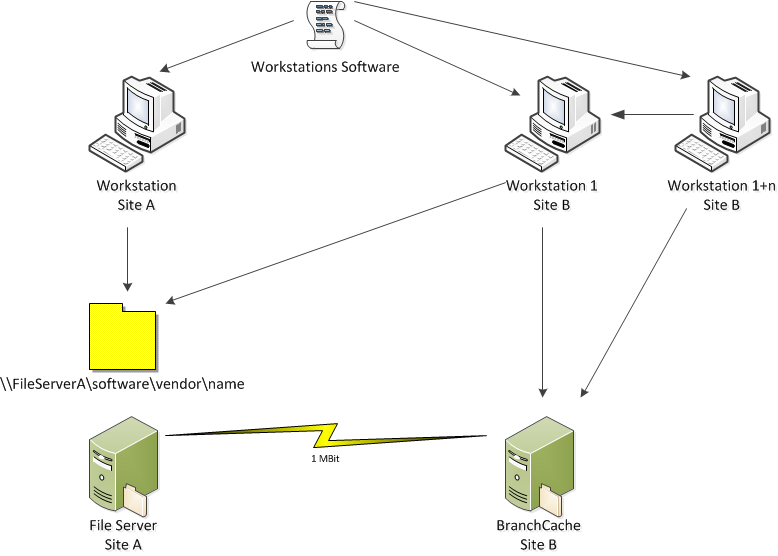
BranchCache is an awesome new feature of Window Server 2008 R2 and Windows 7 that allows clients and servers to cache any SMB or HTTP/S traffic. As Group Policy performs software deployment via a UNC path from a SMB file server then it allows for client to cache any files it pulls down via the WAN. This means after an initial workstation in a site has pulled down the install files then workstation can then act as a temporary cache for other computers on the network thus making subsequent installs much quicker. The big advantage of this method is that you don’t need to have any server infrastructure at remotes sites, yet you still get the benefits of reduced WAN traffic and quicker install speeds.

In addition if you have a Public Key infrastructure in your organisation then it would be very easy to enabled BranchCache on a server. All the BranchCache clients would then send a copy of the files they download to the BranchCache server in the site so it can also act as a “Hosted Cache”. This would reduce the amount of WAN traffic even further as of course a workstation that is configured with BranchCache would need to be always turned of for act as a cache for the other workstations.
Tip: By default BranchCache is disabled even if it install on a computer. Therefore you need to enable the “Turn on Cache Mode” group policy setting.
Pros
- Clients install software via LAN after second install
- Lower management due to single GPO for all workstations
- Low Infrastructure Requirements
Cons
- Only suitable for Windows Server 2008 R2 and / or Windows 7
- First client to install will be slower
If you are running Windows 7 and / or Windows Server 2008 R2 in your organisation then you should really consider implement branch cache. This really delivers the best of both worlds as you can implement this with a low amount of infrastructure are your remote sites yet still reduce WAN bandwidth all using a single GPO/UNC path to deploy the software.
Summary
As you can see there are many different option available to you for distributing your software in your environment via Group Policy. In selecting a method of deployment that is right for you environment I would pick firstly the solution that gives the best end user experience and then the one that has the lowest administrative overhead.

"


 You may have heard about the coming licensing changes from VMware. You may have heard about the new vRAM licensing and some of the impacts it will have on current implementations. And you may have heard about the release of vSphere 5! If not, do a little Googling around and you’ll find


 "
"


 "
"